Add Your Tickets to Your Mobile Wallet
Save your LA Tech tickets before you leave for the game. Apple Wallet and Google Wallet keep them ready even when cellular service is busy near the venue.
Complete these steps on the mobile phone you will bring to the gate.
Add each standard ticket, or each ALL-IN-1 pass once per seat, before leaving home.
LA Tech tickets use contactless entry and must be opened from your mobile wallet.
Follow These Five Steps
The screens may look slightly different as the ticketing system is updated, but the account path and wallet process remain the same.
-
Sign in to your ticket account
Visit the LA Tech ticket account page and enter the email address connected to your tickets. Use the same account that purchased or received the tickets.
Avoid creating a second account. Tickets connected to another email address may not appear.
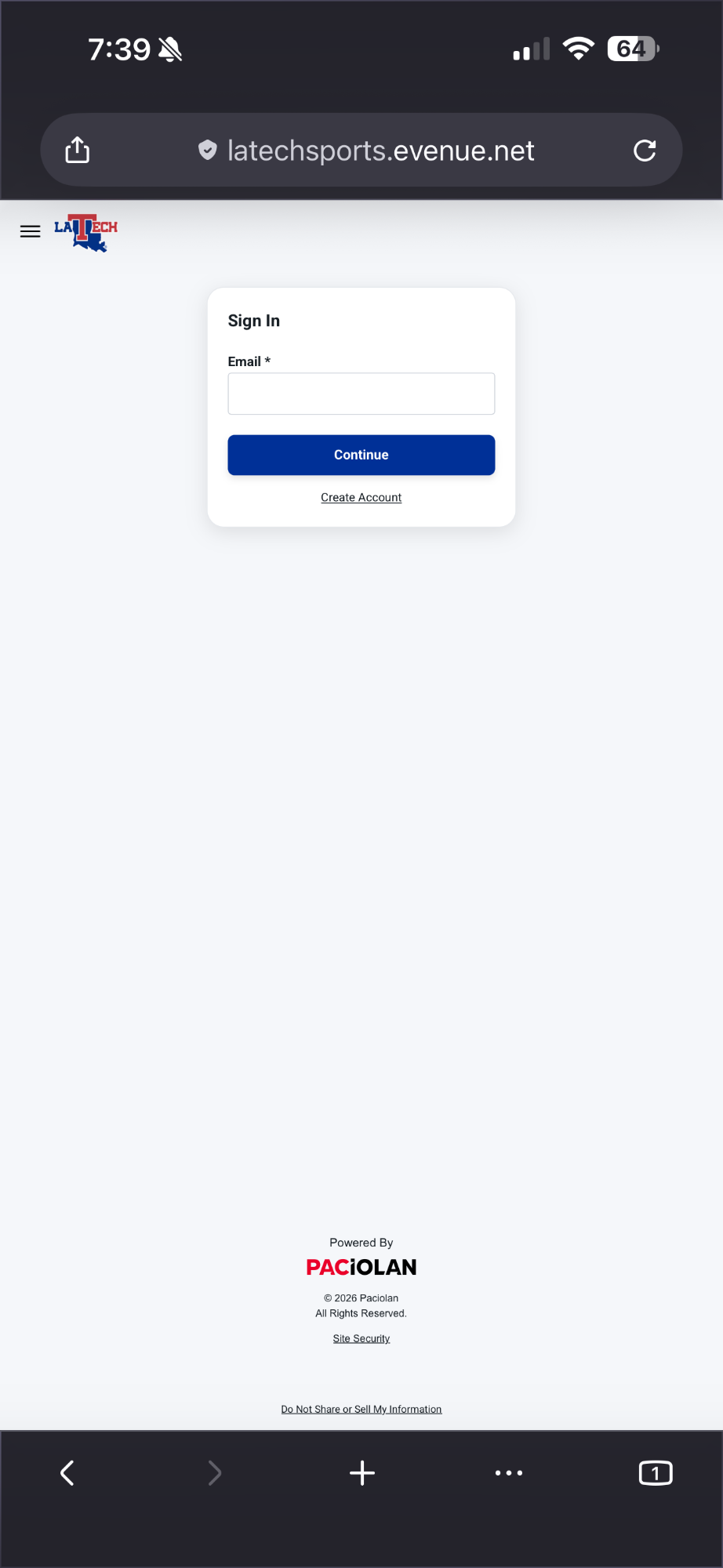
Enter your account email and select Continue. -
Open My Tickets
Open the menu, choose My Tickets, then select My Upcoming Events. Choose the game you plan to attend.
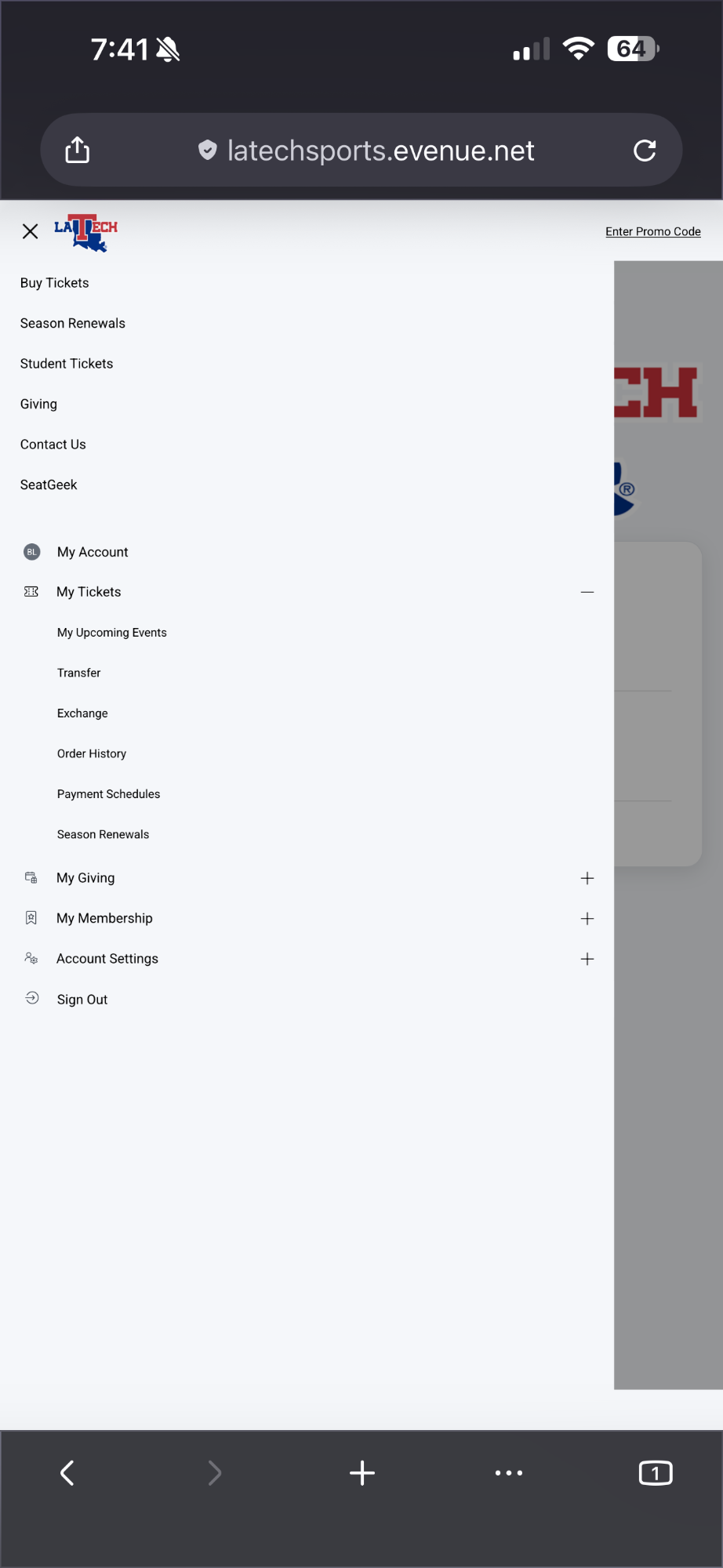
My Tickets contains your upcoming events and ticket-management options. -
Choose your mobile wallet
On the event page, find the ticket you want to use and select Add to Apple Wallet or Add to Google Wallet. Repeat this process for each standard ticket that should be stored on your phone. An ALL-IN-1 season-ticket pass only needs to be added once per seat.
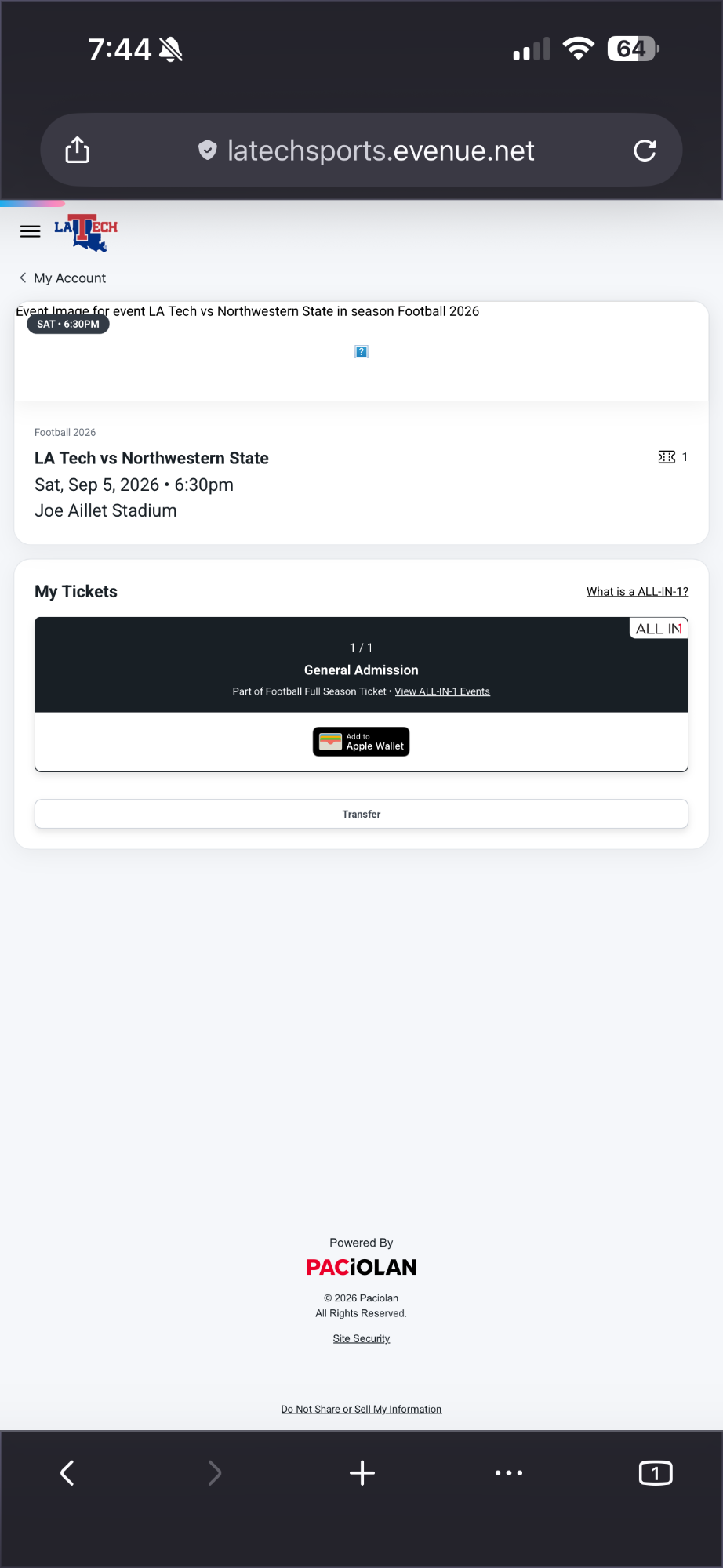
Select the mobile-wallet button beneath the ticket. -
Confirm and save the pass
Your mobile wallet will display a preview of the ticket. Review it, then follow the on-screen prompt to finish saving the pass. On an iPhone, tap Add in the upper-right corner.
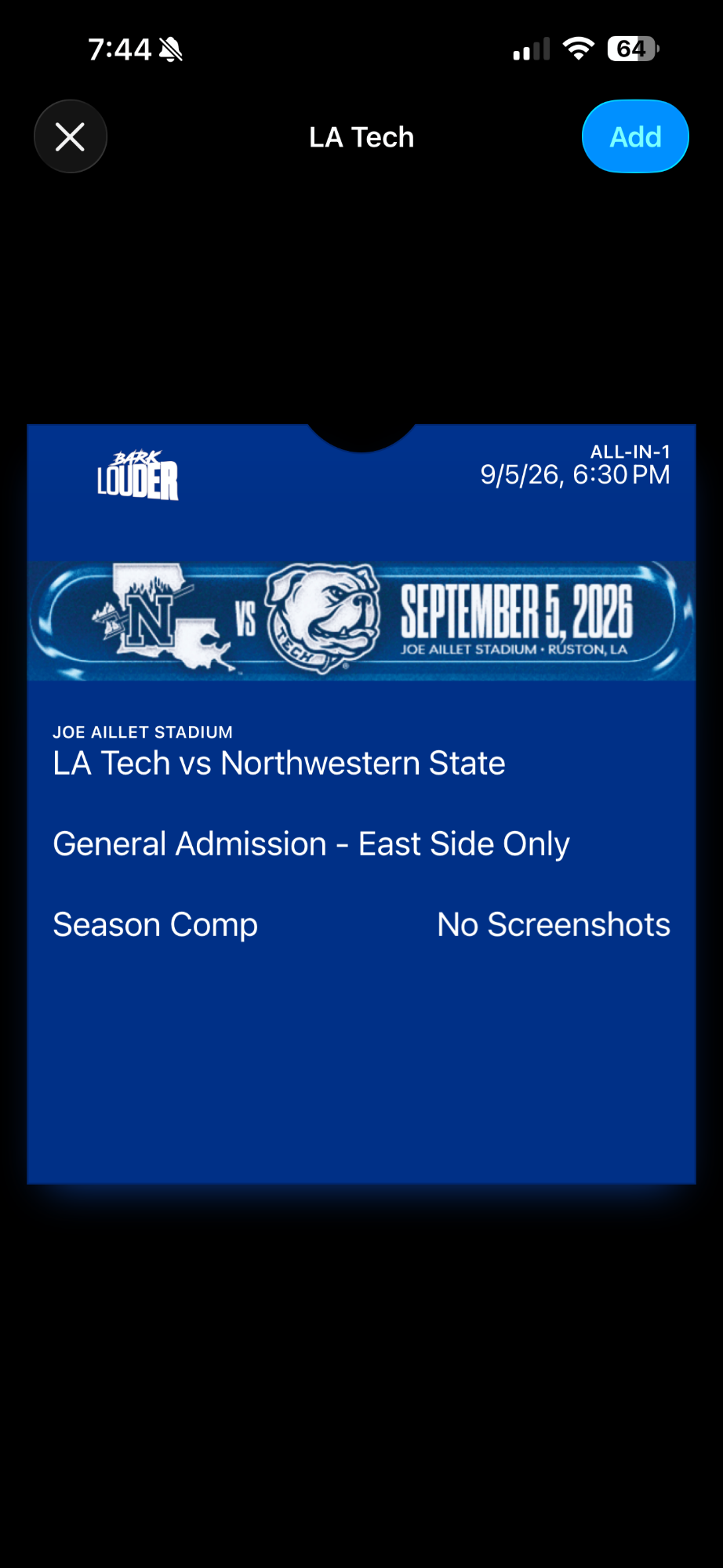
Confirm the ticket to save it to your mobile wallet. -
Your ticket is ready
Open your mobile wallet before you reach the gate and select the correct ticket. The contactless symbol or tap-to-enter message confirms that it is ready for entry.
If you have multiple tickets on one phone, swipe between the passes and scan each ticket separately.
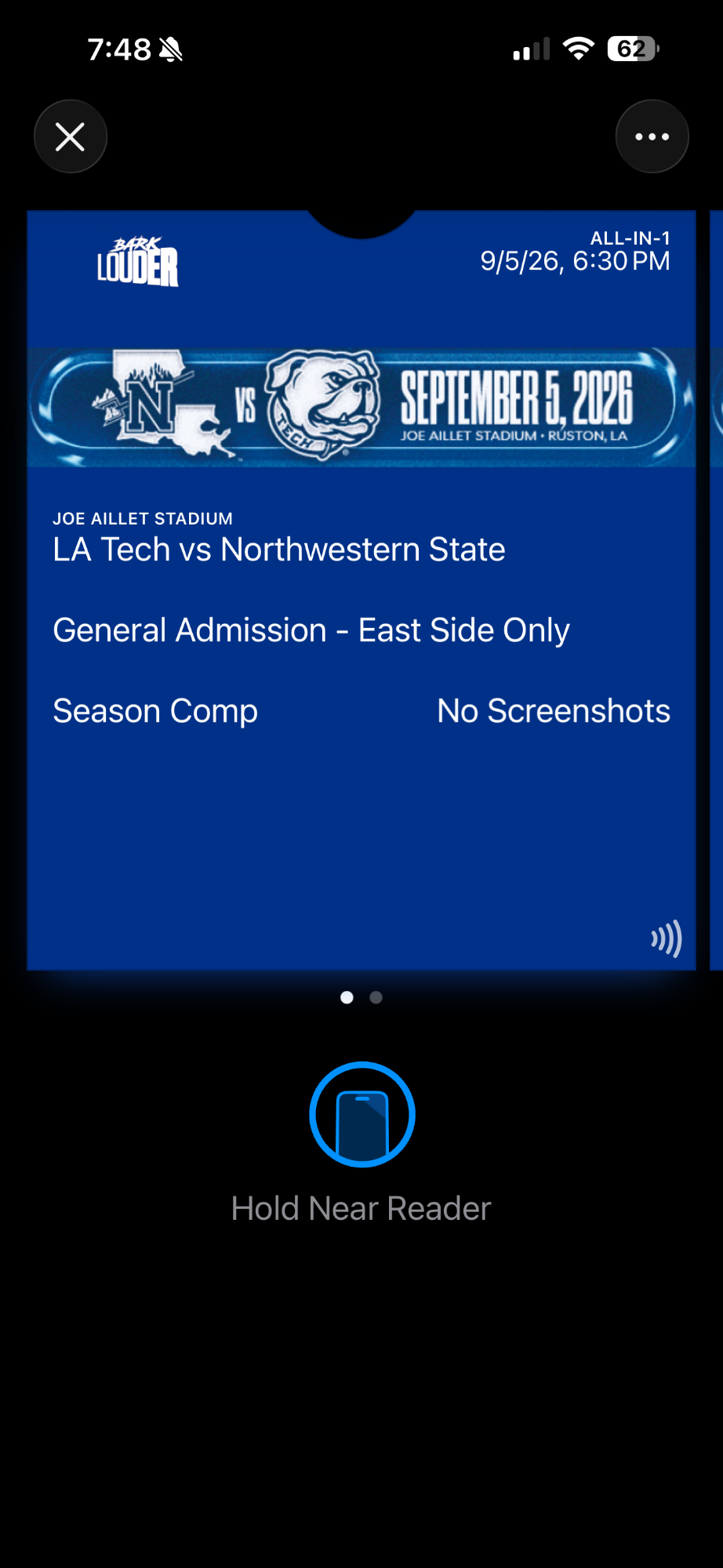
A saved ticket may not show a barcode. The contactless pass is ready to use.
Add It Once. Keep It All Season.
If ALL-IN-1 appears at the top of your pass, add that pass to your mobile wallet one time for each seat. The same pass will update to show the next eligible event in your season-ticket package.
Rotation begins in batches about seven hours after the current event's start time, so the next game may not appear immediately. Do not delete and re-add the pass after every game. You can still manage or transfer individual event tickets through My Account.
- If Automatic Updates are enabled for the pass, it should refresh without being added again.
- If two events occur on the same date, add a separate single-event pass for the second event through My Account.
- If the pass moves to Expired on an iPhone, open Wallet, select More, choose Expired and unhide the pass.
Transfer a Ticket
Use the official transfer option when another person will use a ticket. Do not send a screenshot or attempt to share the pass directly from your mobile wallet.
ALL-IN-1: Transfer the individual event ticket, not the full season pass. The recipient will receive a single-event ticket to add to their own mobile wallet.
-
Open the event
In My Upcoming Events, choose the game and select Transfer beneath the ticket.
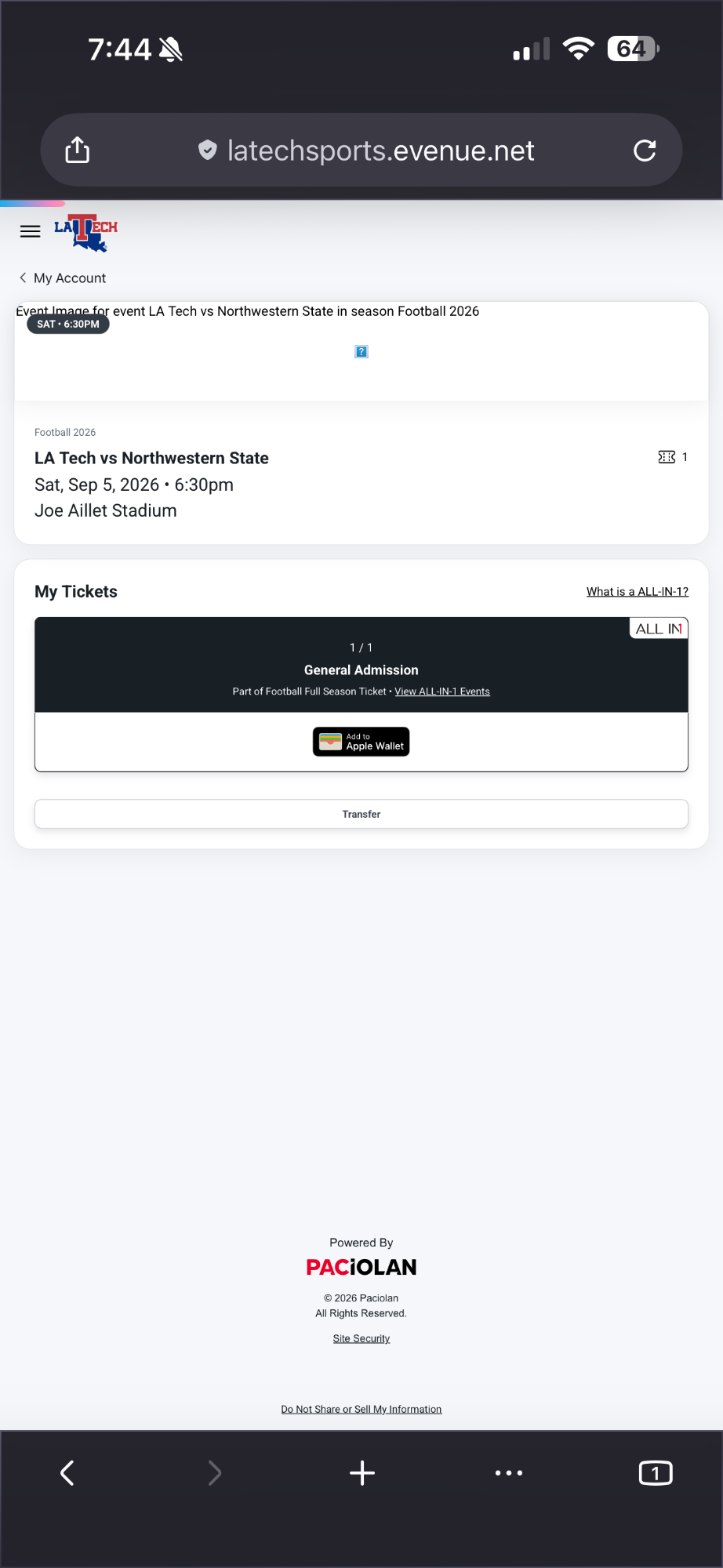
Select Transfer beneath the event ticket. -
Select the tickets
Check each ticket you want to send, then follow the on-screen prompt to continue.
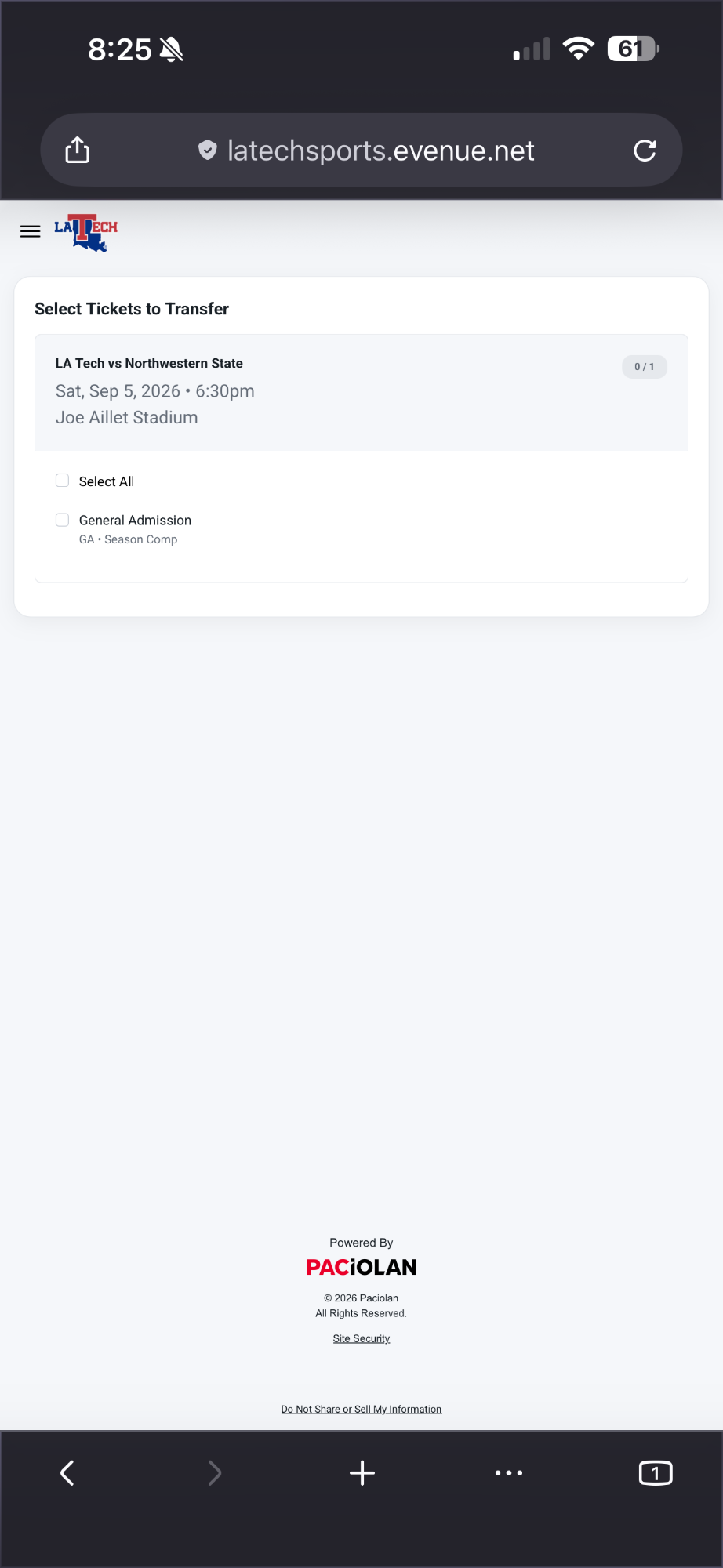
Choose the ticket or tickets for this event. -
Enter the recipient
Enter the recipient's name and mobile number, or choose Use Email Instead. Review the information carefully before sending.
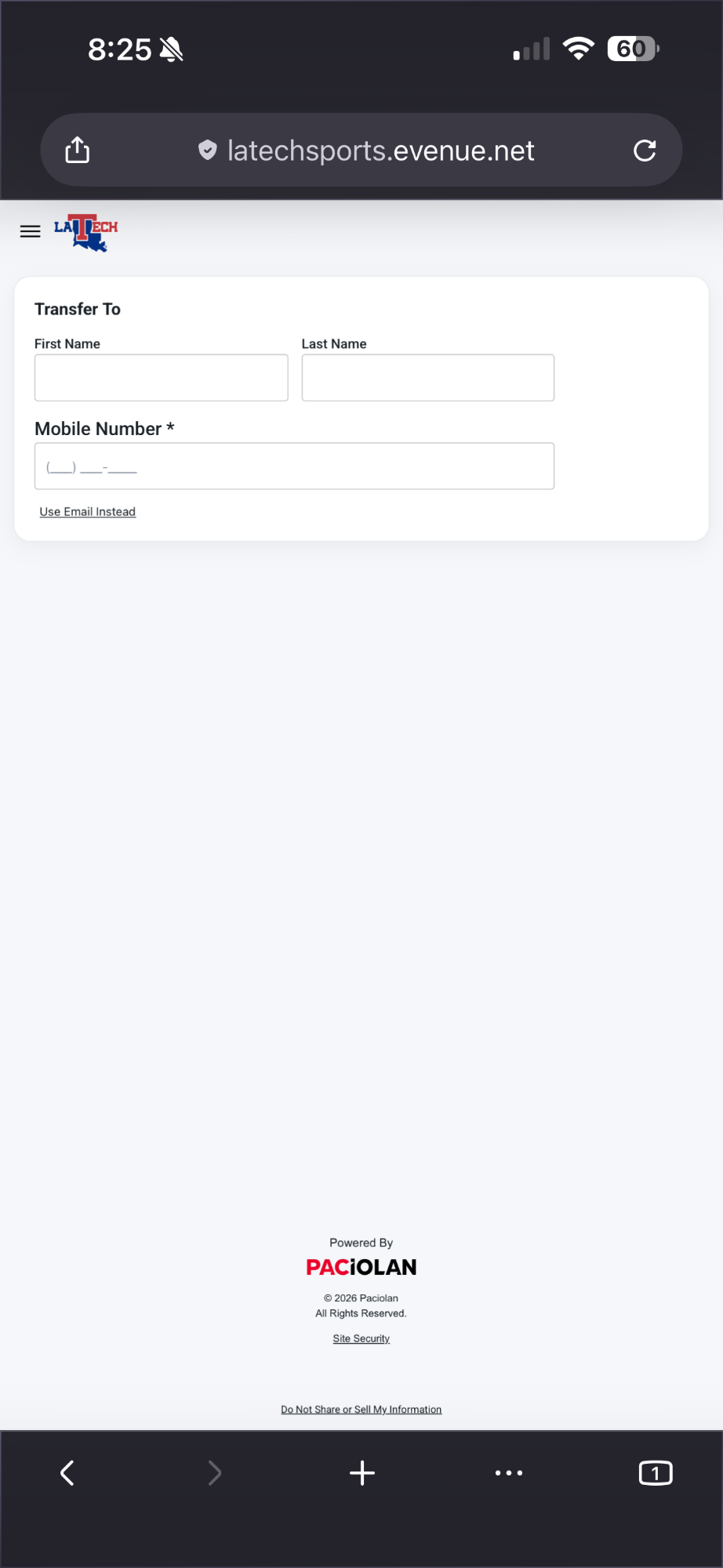
Send the transfer by mobile number or email. -
Accept the transfer
The recipient opens the transfer link and selects Accept Transfer. The transfer must be accepted before the ticket can be used.
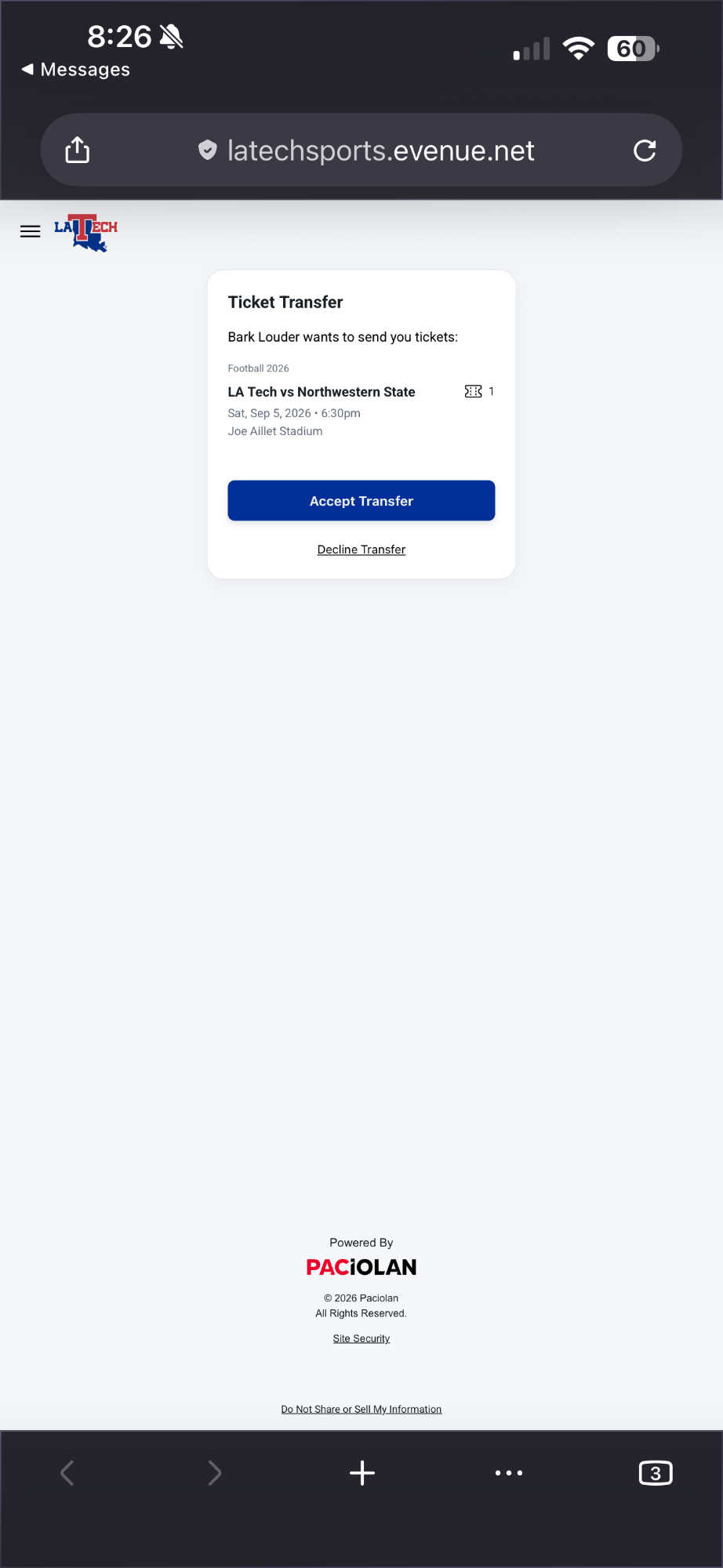
The recipient reviews the event and accepts the transfer. -
Sign in and save it
The recipient signs in to an existing LA Tech ticket account or creates one. After accepting, open My Tickets and add the ticket to the mobile wallet.
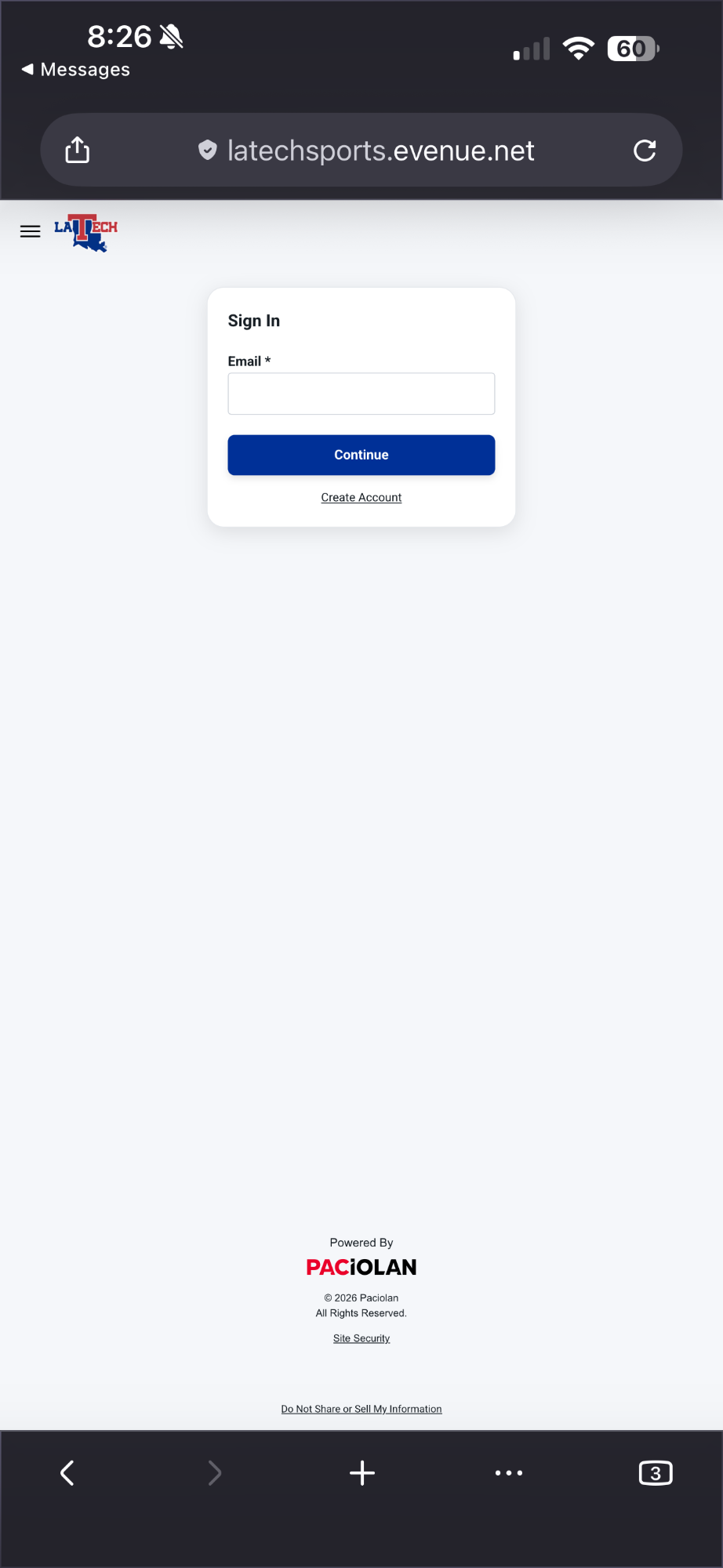
Sign in or create an account to finish accepting the ticket.
At the Gate
Open the ticket in your mobile wallet, select the correct event and hold your phone near the contactless reader. Keep the phone still until the reader confirms entry.
- Do not present a screenshot.
- Have each ticket ready before reaching the scanner.
- Hold the phone near the NFC reader until entry is confirmed.
Troubleshooting and Ticket Help
The screenshots in this guide show an iPhone, but Android users follow the same ticket-account process and choose Add to Google Wallet when that option appears. For the best results, iPhone users should use Safari and Android users should use Chrome.
If an ALL-IN-1 pass does not update, confirm that Automatic Updates are enabled for the pass and that automatic time-zone settings are enabled. If needed, remove the pass, return to the relevant event in My Account and add it again.
If you do not have a compatible phone, your battery dies or another device problem prevents mobile entry, visit the LA Tech Ticket Office. Staff can assist and provide a printed ticket.
Need help? Contact the LA Tech Ticket Office at 318-257-3631 or techtickets@latech.edu.


